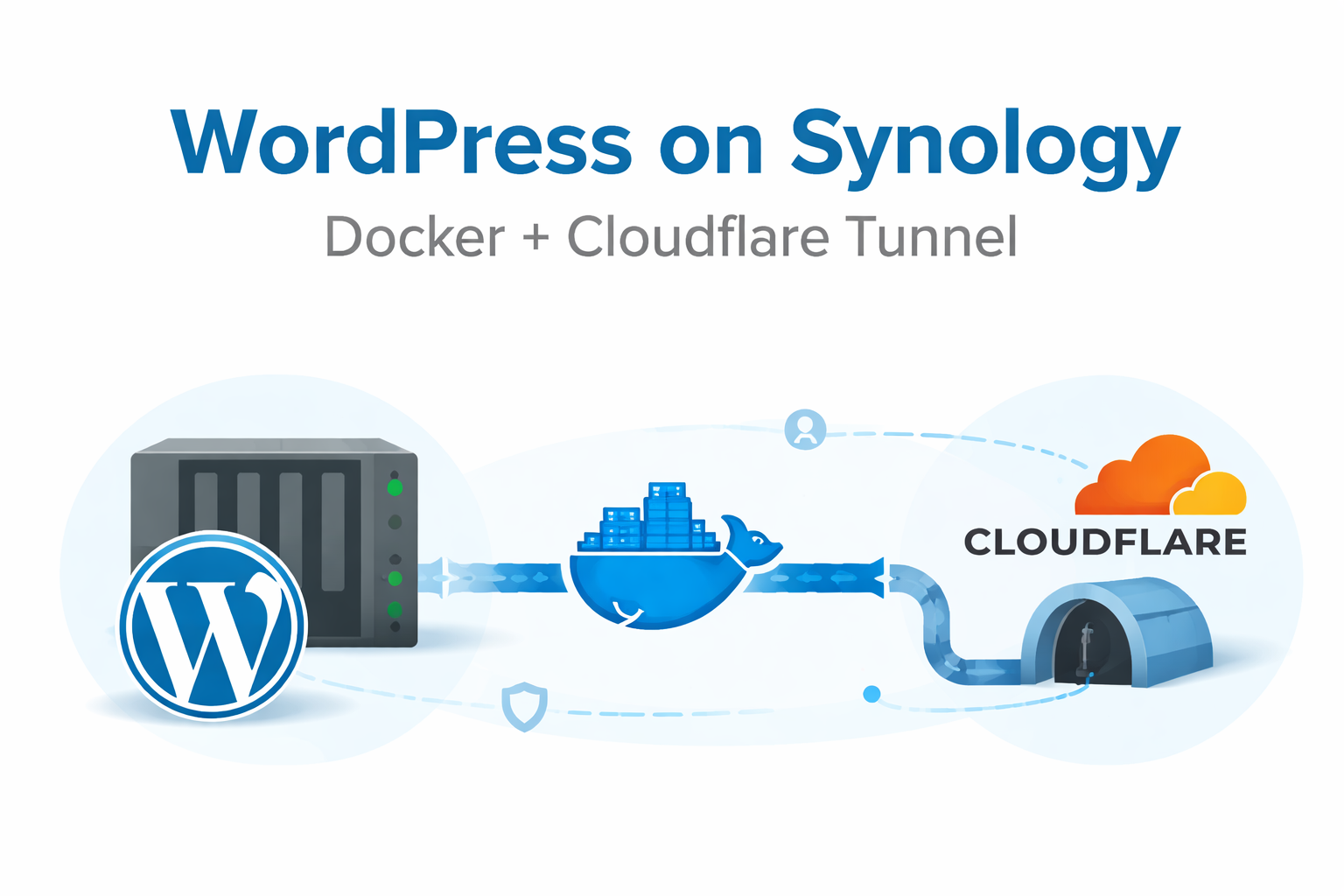
Quick Summary
In this guide, you will learn how to host WordPress on a Synology NAS using Docker and securely expose it to the internet using Cloudflare Tunnel — without port forwarding or DDNS.
This setup provides a production-ready architecture while keeping your NAS secure.
Who Should Read This?
• Home lab enthusiasts
• Developers hosting personal projects
• IT professionals wanting secure self-hosting
• Anyone tired of DDNS and port forwarding complexity
Explain It Like I’m Not in IT
Normally, hosting a website at home requires opening router ports and handling dynamic IP addresses.
Instead, Cloudflare Tunnel creates a secure outbound connection from your NAS to Cloudflare. Visitors connect to Cloudflare, and traffic is securely tunneled back to your WordPress container.
No open ports. No exposed services.
Architecture Overview
Visitor → HTTPS → Cloudflare → Secure Tunnel → WordPress Container → MariaDB Container
Step 1 – Docker Compose Configuration
version: “3.9”
services:
db:
image: mariadb:11
container_name: wp-db
restart: unless-stopped
environment:
MYSQL_ROOT_PASSWORD: yourRootPassword
MYSQL_DATABASE: wordpress
MYSQL_USER: wpuser
MYSQL_PASSWORD: yourDbPassword
volumes:
– /volume1/docker/wordpress/db:/var/lib/mysql
networks:
– wpnet
wordpress:
image: wordpress:php8.2-apache
container_name: wp-app
restart: unless-stopped
depends_on:
– db
environment:
WORDPRESS_DB_HOST: wp-db:3306
WORDPRESS_DB_NAME: wordpress
WORDPRESS_DB_USER: wpuser
WORDPRESS_DB_PASSWORD: yourDbPassword
volumes:
– /volume1/docker/wordpress/wp:/var/www/html
ports:
– “8080:80”
networks:
– wpnet
cloudflared:
image: cloudflare/cloudflared:latest
container_name: wp-tunnel
restart: unless-stopped
command: tunnel run
environment:
– TUNNEL_TOKEN=YOUR_TUNNEL_TOKEN
networks:
– wpnet
networks:
wpnet:
driver: bridge
Cloudflare Tunnel Configuration
In Cloudflare Zero Trust:
1. Create Tunnel
2. Choose Docker
3. Copy Tunnel Token
4. Add Public Hostname
Service Type: HTTP
URL: wp-app:80
WordPress HTTPS Fix
Add this to wp-config.php:
if (!empty($_SERVER[‘HTTP_X_FORWARDED_PROTO’]) &&
$_SERVER[‘HTTP_X_FORWARDED_PROTO’] === ‘https’) {
$_SERVER[‘HTTPS’] = ‘on’;
}
Common Issues
502 Bad Gateway:
• Ensure Service Type is HTTP
• Ensure containers share same Docker network
Error Establishing Database Connection:
• Verify DB credentials
• Reset DB password if needed
Redirect to :8080:
• Update siteurl and home in wp_options table
Key Takeaways
• No port forwarding required
• No DDNS required
• Secure outbound-only tunnel
• Production-ready architecture
cloudflare/cloudflared:latest
How to check vulnerability scans and upgrades on this image
docker scout quickview cloudflare/cloudflared:latest
Then full report:
docker scout cves cloudflare/cloudflared:latest